Your first configuration script
Hope you had a good stretch break waiting for gem5 to build. Now that it’s finally done, let’s run a simulation!
By the end of this section, you will be able to:
- Run a pre-existing gem5 Python script.
- Explain how a Python configuration script is used in conjunction with the gem5 binary.
- Locate the output of gem5 simulator runs.
What’s a configuration script?
Like we mentioned in the Enter gem5 section (Unit I, Section 2), gem5 is a Python interpreter. A configuration script is a Python (.py) file containing the parameters for a gem5 simulation. It specifies the components to be simulated and provides other options like the simulation mode (more on this later), how long the simulation will run for, what code the simulated components will execute, and much more.
Hello, world!
Ok, enough waiting. Let’s simulate! Visit the workspace directory and locate the file named hello_world.py. We’ll be running this script then talking about it! Navigate to the parent directory of the gem5 directory and run:
./gem5/build/ALL/gem5.opt workspace/01-introduction/04-first-config-script/hello_world.py
If you set an alias for the
gem5.optexecutable in the Installing gem5 section (Unit I, Section 3), you can use that alias (i.e.,gem5) instead of./gem5/build/ALL/gem5.opt.
If all goes well, you’ll see this output in your terminal:
gem5 Simulator System.  https://www.gem5.org
gem5 is copyrighted software; use the --copyright option for details.

gem5 version 25.0.0.1
gem5 compiled <COMPILATION TIME>
gem5 started <START TIME>
gem5 executing on <ENVIRONMENT>, pid <PROCESS ID>
command line: ./gem5/build/ALL/gem5.opt workspace/01-introduction/04-first-config-script/hello_world.py

warn: The X86DemoBoard is solely for demonstration purposes. This board is not known to be be representative of any real-world system. Use with caution.
info: Using default config
Resource 'x86-linux-kernel-6.8.0-52-generic' was not found locally. Downloading to '$HOME/.cache/gem5/x86-linux-kernel-6.8.0-52-generic'...
Finished downloading resource 'x86-linux-kernel-6.8.0-52-generic'.
Resource 'x86-ubuntu-24.04-img' was not found locally. Downloading to '$HOME/.cache/gem5/x86-ubuntu-24.04-img.gz'...
Finished downloading resource 'x86-ubuntu-24.04-img'.
Decompressing resource 'x86-ubuntu-24.04-img' ('$HOME/.cache/gem5/x86-ubuntu-24.04-img.gz')...
Finished decompressing resource 'x86-ubuntu-24.04-img'.
warn: Max ticks has already been set prior to setting it through the run call. In these cases the max ticks set through the `run` function is used
Global frequency set at 1000000000000 ticks per second
warn: board.workload.acpi_description_table_pointer.rsdt adopting orphan SimObject param 'entries'
warn: No dot file generated. Please install pydot to generate the dot file and pdf.
src/mem/dram_interface.cc:690: warn: DRAM device capacity (16384 Mbytes) does not match the address range assigned (2048 Mbytes)
src/mem/dram_interface.cc:690: warn: DRAM device capacity (16384 Mbytes) does not match the address range assigned (2048 Mbytes)
src/sim/kernel_workload.cc:46: info: kernel located at: $HOME/.cache/gem5/x86-linux-kernel-6.8.0-52-generic
      0: board.pc.south_bridge.cmos.rtc: Real-time clock set to Sun Jan  1 00:00:00 2012
board.pc.com_1.device: Listening for connections on port 3456
src/base/statistics.hh:279: warn: One of the stats is a legacy stat. Legacy stat is a stat that does not belong to any statistics::Group. Legacy stat is deprecated.
src/dev/intel_8254_timer.cc:128: warn: Reading current count from inactive timer.
board.remote_gdb: Listening for connections on port 7000
What did I just run?
Great question! Let’s break this down.
The imports
from gem5.prebuilt.demo.x86_demo_board import X86DemoBoard
from gem5.resources.resource import obtain_resource
from gem5.simulate.simulator import Simulator
These 3 import statements pull in critical components for our simulation: the board, the method by which we grab a workload for our board, and the simulator that actually runs the workload on the simulated board. More on these components up next!
The board
board = X86DemoBoard()
This line instantiates a board. Think of a board as a motherboard that other components (such as a CPU, a cache hierarchy, and a memory system) plug into. X86DemoBoard is a pre-built board that already comes with plugged-in components so that you don’t have to worry about it!
If you’re curious, you can look into the source file for X86DemoBoard at gem5/src/python/gem5/prebuilt/demo/x86_demo_board.py. The code in there may not make perfect sense quite yet, but you may be able to spot the memory, processor, and cache hierarchy being instantiated and “plugged into” the board.
The workload
board.set_workload(
    obtain_resource("x86-ubuntu-24.04-boot-no-systemd")
)
You can think of a board’s workload as the code it is tasked with running along with any parameters or extra data it needs to do so. We first acquire the workload using the obtain_resource function, which grabs a resource by name from the collection of pre-existing gem5 resources. We’ll talk more about these resources later on in the bootcamp.
This particular resources boots up Ubuntu without systemd then promptly exits the simulation. This workload includes all of the necessary information to boot Ubuntu (like the disk image and the kernel code) and sets all the simulation parameters to their default values.
After we get the workload, we tell the board to run it using the set_workload function.
The simulator
sim = Simulator(board)
sim.run(20_000_000_000)
Having a board is great and all, but we need to tell gem5 how to start the simulation. For that, we use the Simulator object. Think of the Simulator as the simulation controller. It takes a board (along with other optional parameters, which we didn’t bother with here), and we can tell it to instantiate all of the board’s components and start a simulation with run().
The parameter we gave to the run() function is the number of simulation ticks we want the simulation to run for. You can configure the length of a tick, but by defualt, a tick is one picosecond (1 ps, equal to $10^{-12}$ seconds). Here, we tell the simulation to run for 20,000,000,000 in-simulation picoseconds, or 20 in-simulation milliseconds. After that simulated time has elapsed, the simulation will end.
Putting it all together
All together, our “hello world” file takes a pre-built board, tells it to boot Ubuntu, then simulates that booting process happening on that board for 20 simulated milliseconds before exiting. It looks something like this:
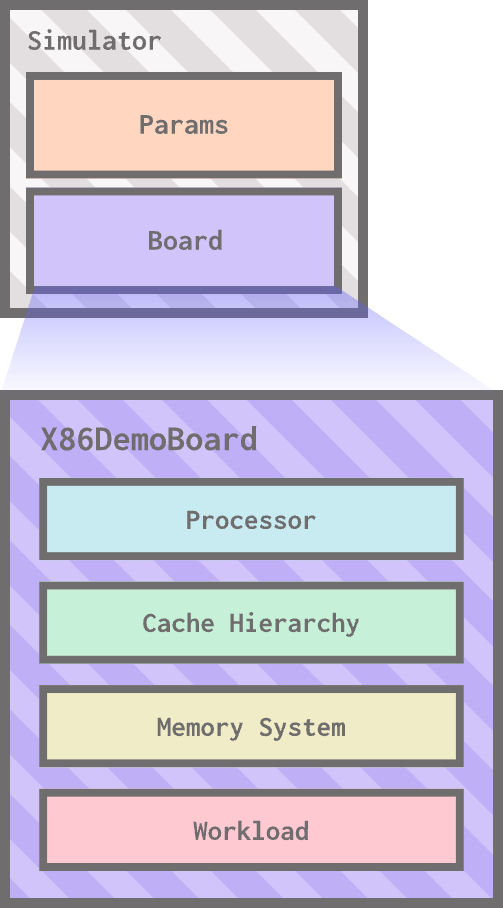
In this case, we left the “params” box in the simulator empty, meaning we just used the default values.
At the core, every gem5 simulation boils down to this: a simulation that simulates a board. The complexity comes in when we start doing away with prebuilt components and reconfigure or even build our own components. You’ll be doing that in no time!
Simulation Output
You may notice that a new directory named m5out has appeared under your current directory. m5out contains the output of the most recent gem5 simulation, including information about the current simulation configuration as well as all of the gathered simulation statistics.
For now, we’ll take a brief look at two files: config.ini and stats.txt. Don’t worry if you can’t parse through these files entirely by the end of this section; we’ll be looking at these files again later on in the bootcamp.
config.ini
This file details the architecture being simulated; it will list every model in the simulation along with its parameter values. We can use this file to double-check any system details.
For example, you can search the file (using
ctrl + For equivalent) for[board.processor.cores0.core.isa]. When you do, you’ll see the linetype=X86ISAunderneath, confirming that the CPU cores of our simulated processor are x86 cores.
stats.txt
This file contains all gathered simulation statistics. At the top of the file, you will always find general statistics detailing how long the simulation took in terms of host (wallclock) time, simulated time, and number of instructions. For hello_world.py, we should see something like this:
---------- Begin Simulation Statistics ----------
simSeconds                                   0.020000                       # Number of seconds simulated (Second)
simTicks                                  20000000000                       # Number of ticks simulated (Tick)
finalTick                                 20000000000                       # Number of ticks from beginning of simulation (restored from checkpoints and never reset) (Tick)
simFreq                                  1000000000000                       # The number of ticks per simulated second ((Tick/Second))
hostSeconds                                     31.50                       # Real time elapsed on the host (Second)
hostTickRate                                634990766                       # The number of ticks simulated per host second (ticks/s) ((Tick/Second))
hostMemory                                    3738248                       # Number of bytes of host memory used (Byte)
simInsts                                     28915834                       # Number of instructions simulated (Count)
simOps                                       48714354                       # Number of ops (including micro ops) simulated (Count)
hostInstRate                                   918061                       # Simulator instruction rate (inst/s) ((Count/Second))
hostOpRate                                    1546651                       # Simulator op (including micro ops) rate (op/s) ((Count/Second))
You’ll notice that the number of simulated ticks (simTicks) is a clean 20000000000. As you might remember, this is because we told the simulator to exit after 20000000000 ticks with the line:
sim.run(20_000_000_000)
By checking the
simInstsstatistic, we can find out that during these 20000000000 ticks, our processor executed a total of 28915834 instructions.
There are a lot of other statistics in stats.txt: most gem5 components are configured to collect several statistics about their operation.
For example, you can search the file for
board.cache_hierarchy.l1dcaches0.overallMissRate::total, which tracks the overall miss rate of the L1 data cache.board.cache_hierarchy.l1dcaches0.overallMissRate::total 0.002487This tells us that the miss rate of this workload on this simulated architecture is 0.002487, or around 0.25%.
Other files in m5out
m5out contains a few other helpful files:
config.jsoncontains the same simulation details asconfig.iniin a JSON format.board.pc.com_1.devicecontains the console output from the simulation.citations.bibcontains the citations for all models and resources used in case you need to cite the simulation in your research.